
InAppWebView is a useful tool for managing a user’s web access within a custom flutter app and a great way to keep a user authenticated between native app features and web-only features you or your team have already developed. I’ve long advocated for the use of “Chrome Custom tabs” and “SFSafariViewController” since their introduction for their ability to enable the full web browser experience without forcing the user out of your app, but sometimes, you just can’t avoid using the more “limited”, fully embeded web browser experience in your app. In such cases, you’re liable to run up against standard web norms while your users make the most of your application. I ran into exactly that on a recent project where our application was required to present a list of O365 documents in a SharePoint component that a typical user would likely want to view within the application. By default, those links are set to open “in a new tab” – but we quickly ran into an apparent issue; and embedded web browser has no concept of a new tab! The library we used, to render the web browser, InAppWebView for Flutter, recommended we create and present our own “new tab” as a popover within the application, but I found this approach clunky and consumed a fair amount of visual real estate that made document browsing less functional. Instead, I opted to take an approach that would route the new tab content – including auth state – into the existing page’s embedded web browser so the app could utilize the page dimensions to its fullest and keep the interface “clean”. I don’t normally recommend override standard behavior, but after reviewing with the client, they agreed this approach was more ideal for their needs. As the old saying goes:
So, let’s take a look at how to accomplish this. based on our specific circumstances – which is to say, the way SharePoint specifically operates – we can’t easily get the final URL for the target document for all document types until SharePoint executes some of its own javascript, determines the document display strategy and finally presents the document in an appropriate viewer. This final result is ultimately the route we’d want to route to the existing embedded webview. So to return that value back to the parent webview, we’d need to take these steps:
- Ensure the parent webview controller is accessible on the widget that hosts both the parent webview and the child webview.
- Intercept the “target:_blank” request from the parent webview using the onCreateWindow method provided by InAppWebView.
- Load the child webview page in a “hidden” state presented as a popover
- Determine when the child webview page has finished loading and route the parent webview to the same URL
- Dismiss the “hidden” child webview once the parent starts loading the same request
The biggest disadvantage of this approach is that there is an extended loading state before the content is presented to the user; since the behavior of SharePoint specifically necessitates fully realizing the opened URL, we have no way to avoid both the child and parent loading. That said, for our testing we only found the wait time to be extended by a second or two, which we ultimately deemed “acceptable” given the purpose of the application. The birds-eye view of the solutions looks like so:
Let’s zoom in on the create window handler, were all the “work” happens:
onCreateWindow: (controller, createWindowAction) async {
              // onCreateWindow is used when the source web page tries to open a link in a new tab
              // For our purposes, we'll attempt to scrape the destination URL from a child webview before
              // routing the primary webview to that destination.
              log("[webview_screen] onCreateWindow");

              showDialog(
                context: context,
                builder: (context) {
                  return AlertDialog(
                    titlePadding: EdgeInsets.zero,
                    contentPadding: EdgeInsets.zero,
                    insetPadding: EdgeInsets.zero,

                    content: SizedBox(
                      width: 0, // Hidden,
                      height: 0, // Hidden,

                      child: InAppWebView(
                        windowId: createWindowAction.windowId,
                        onWebViewCreated: (InAppWebViewController controller) async {
                          log("[webview_screen] popup onWebViewCreated");
                          shouldDismissPopover = true;
                        },
                        onLoadStart: (controller, url) async {
                          log("[webview_screen] popup onLoadStart: $url");

                          if(Platform.isAndroid && url?.rawValue == "about:blank") {
                            log("[webview_screen] Handling android specific about:blank");

                            shouldDismissPopover = false;
                            return;
                          }

                          _webViewController.loadUrl( urlRequest: URLRequest(url: url));
                          if (shouldDismissPopover) {
                            Navigator.of(context).pop(false);
                          }
                        },
                        onLoadStop: (controller, url) async {
                          log("[webview_screen] popup onLoadStop: $url");
                          try {
                            if (Platform.isAndroid && url?.rawValue != "about:blank") {
                              Navigator.of(context).pop(false);
                            }
                          } catch (e) {
                            log("[webview_screen] ${e.toString()}");
                          }
                        },
                        onPageCommitVisible: (controller, url) => {
                          log("[webview_screen] popup onPageCommitVisible: $url")
                        },
                      ),
                    ),
                  );
                }
              );

              return true;
            },
Some important things to highlight here: Android handles windows and popups slightly different than iOS. Further complicating things, SharePoint handles different document types’ open behavior differently for iOS and Android, so not all navigation actions on Android triggered a new tab in our instance.
                          if(Platform.isAndroid && url?.rawValue == "about:blank") {
                            log("[webview_screen] Handling android specific about:blank");

                            shouldDismissPopover = false;
                            return;
                          }
That said, if we detect a blank page navigation on Android, we want to handle it correctly, so we track that event with a flag “shouldDismissPopover” in this instance and prevent sending a “pop” request later to avoid navigating back in the stack where not needed.
                          _webViewController.loadUrl( urlRequest: URLRequest(url: url));
                          if (shouldDismissPopover) {
                            Navigator.of(context).pop(false);
                          }
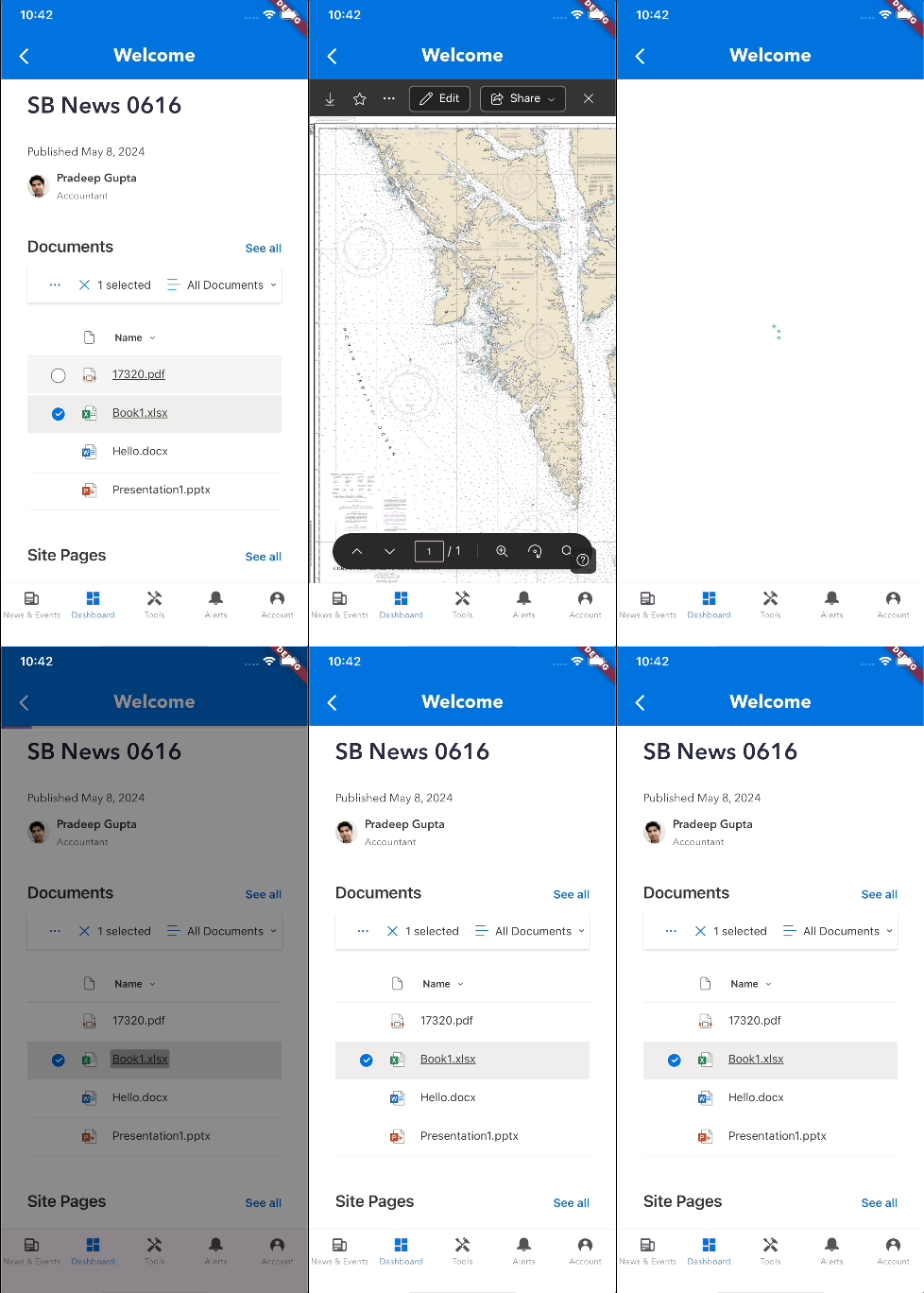
With that case covered, we can successfully route popup windows from our SharePoint component into the embedded web browser window when needed:

 I Write Code Sometimes
You must be logged in to post a comment.